What are the Options to Customize my Smart Cyber Quote Letter?

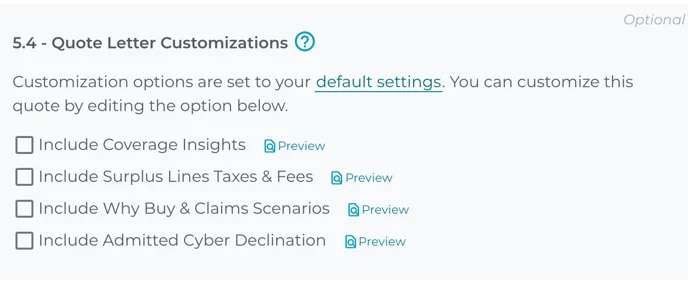
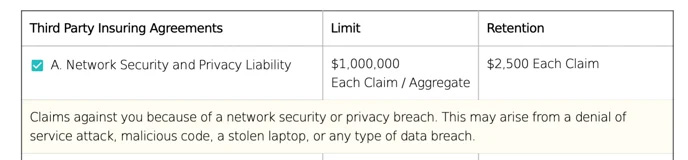
Selecting Coverage Insights will insert brief descriptions of coverage for each individual insuring agreement in the quote -- example seen below with a yellow background.
The Coverage Insights are available for all Smart Cyber quotes. They are also available for Smart Tech E&O quotes.
Note: Throughout the quote we've placed hyperlinks to videos that explain certain coverages in greater detail. These are always be present in the quote regardless choice. Look for the icons!
2. Surplus Lines Taxes and Fees
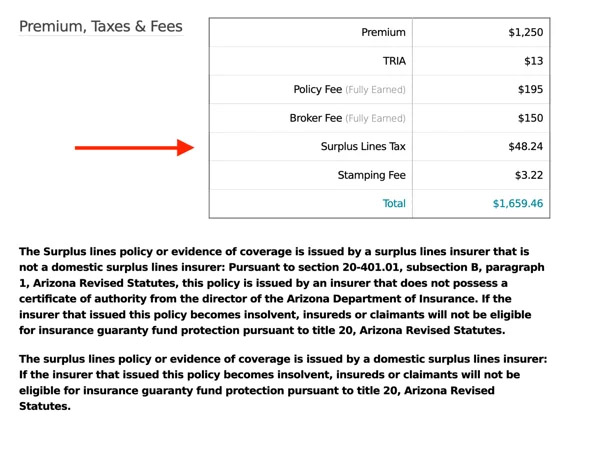
Selecting to include Surplus Lines Taxes & Fees simply inserts a line into the existing table showing Premium, Taxes and Fees in our standard quote, along with the disclaimer shown below.
This option is available for all Smart Cyber quotes. It is also available for Smart Tech E&O quotes.
3. "Why Buy Cyber" and Claims Scenarios Marketing Sheets
We've produced numerous marketing sheets that help policyholders understand the need for cyber insurance. These "Why Buy Cyber Insurance" marketing sheets are specific to common industry classes, pointing out areas of Cyber coverage and statistics relevant to that industry. The sheets also include cyber claim scenarios drawn from real incidents.
If you select this option on the app, the proper sheet will be attached to the same email we send with your quote letter, as an additional PDF.
Note: You can only add a team member from your brokerage (having the same email domain).
4. Admitted Cyber Declination Form
For retail agents and brokers who require an admitted cyber declination form to work with Corvus, you can avoid the additional step of sending it to your client and instead add it as an additional page within the quote letter document. If you are a wholesale broker, this option will not appear on your list.