
How do I set up my Broker Team?

Give your team members default visibility into your accounts, with total flexibility per account
The steps below show how to quickly add a team member to your Broker Team.
Team members can view and access client information, and receive any emails sent to the client from the CrowBar. Adding a broker not currently on the CrowBar will create an account for that person. You have flexibility to not add your default team, or create a different team, for any individual account.
Note: You can only add a team member from your brokerage (having the same email domain).
How to set up your broker team
From your main page in the CrowBar, find the section for adding a client and click on the "Manage Team" button. 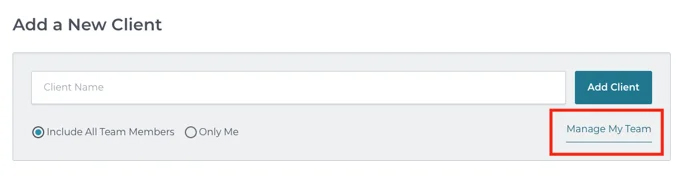
Add emails and names on the ensuing page. 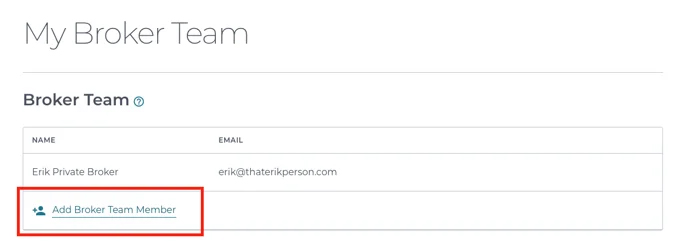
You can remove any of the Broker Team members you've added at any time. But note that you cannot remove yourself (if you do, you will re-appear automatically). 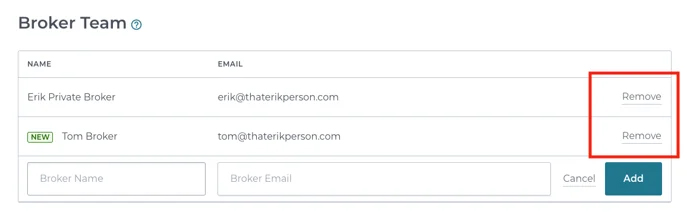
Now, when adding a client, we will include all members of your Broker Team by default. You can select "Only Me" to not include your team. You can always go back and change this later, on the individual client's page (second image) -- even creating an entirely different team for that one client. 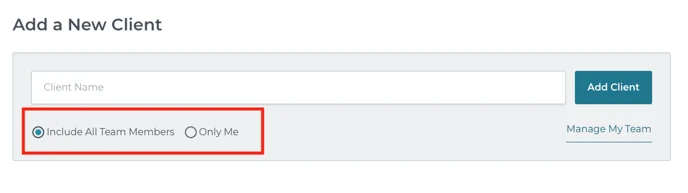
Individual client page view: 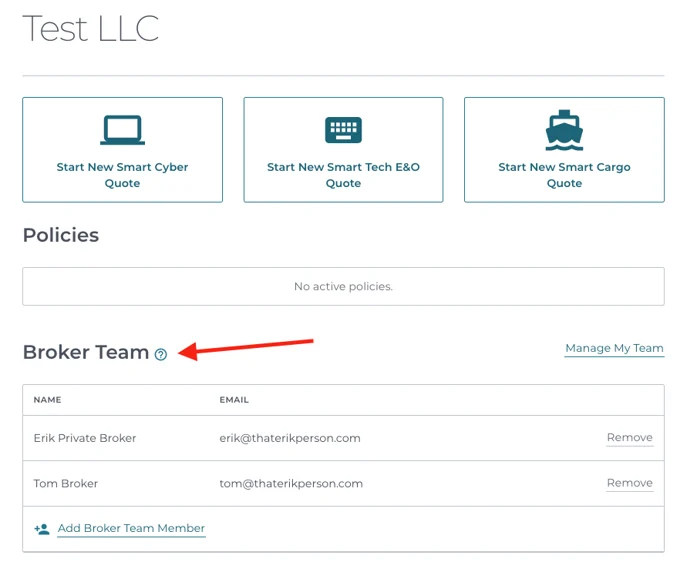
Thanks for reading, let us know if you need further help!